Enhancing Your Typing Efficiency: How to Type an Underscore on a QWERTY Keyboard Using Productive Key Combinations
Learning where every character sits on your keyboard might seem like a small detail, but it can make a genuine difference to your daily productivity. The underscore is one of those characters that trips people up more often than you’d expect, largely because it shares a key with another symbol and requires a specific combination to produce. Whether you’re coding, formatting a document, or simply typing a username that requires separation between words, knowing exactly how to summon this character without hesitation will save you time and frustration.
At a glance
- To type an underscore on a standard QWERTY keyboard, you must hold the Shift key while pressing the hyphen key located to the right of the zero.
- This Shift-plus-hyphen combination is consistent across both Windows and macOS, helping to build reliable muscle memory for users.
- Keyboard layouts like AZERTY differ from QWERTY, so users should verify the specific key placement when switching between regional hardware.
- The underscore is a vital character in coding and file naming, where it serves as a functional replacement for spaces to maintain syntax.
- Mastering proper touch-typing techniques, such as keeping fingers on home row keys, can significantly increase typing speed and overall accuracy.
- If you struggle to produce specific characters, verify that your operating system’s language settings match your physical keyboard layout or use an on-screen keyboard for guidance.
Mastering the underscore: essential keyboard techniques
Understanding the Shift Key Function for Special Characters
On a standard QWERTY keyboard, the underscore doesn’t have its own dedicated key. Instead, it lives alongside the hyphen, and you access it by holding down the Shift key and pressing that same hyphen key. This is a common pattern across many special characters, where the Shift key unlocks a secondary symbol printed above the primary one. Once you’ve internalised this small combination, typing an underscore becomes second nature, much like any other habitual keystroke.
Locating the Hyphen Key on Your QWERTY Layout
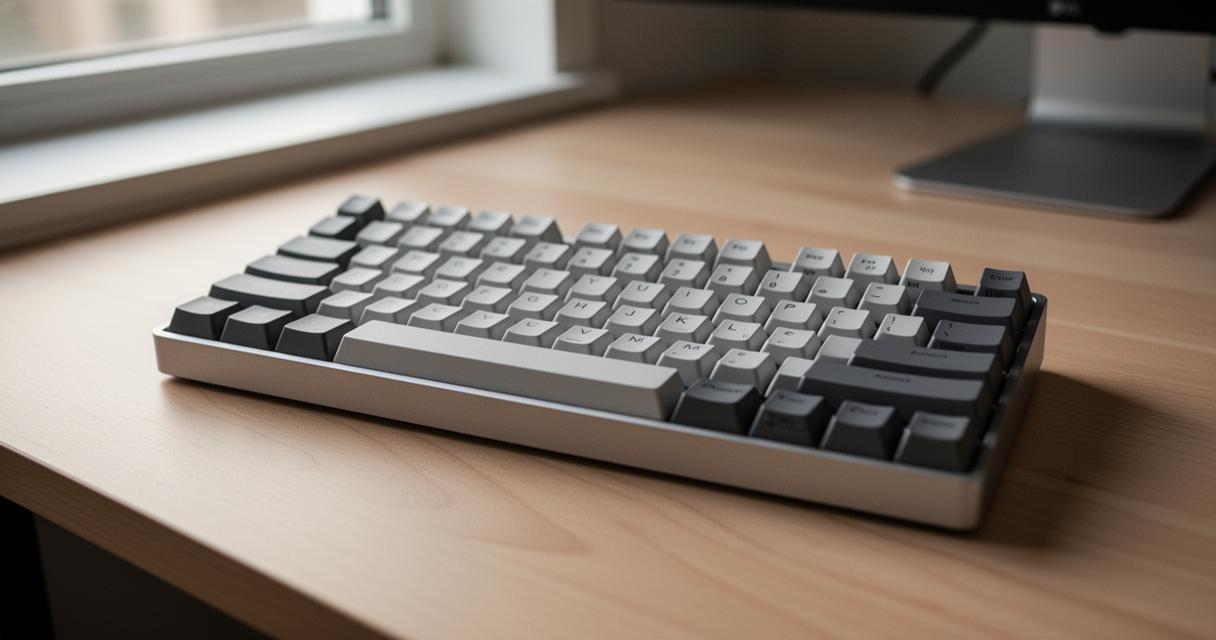
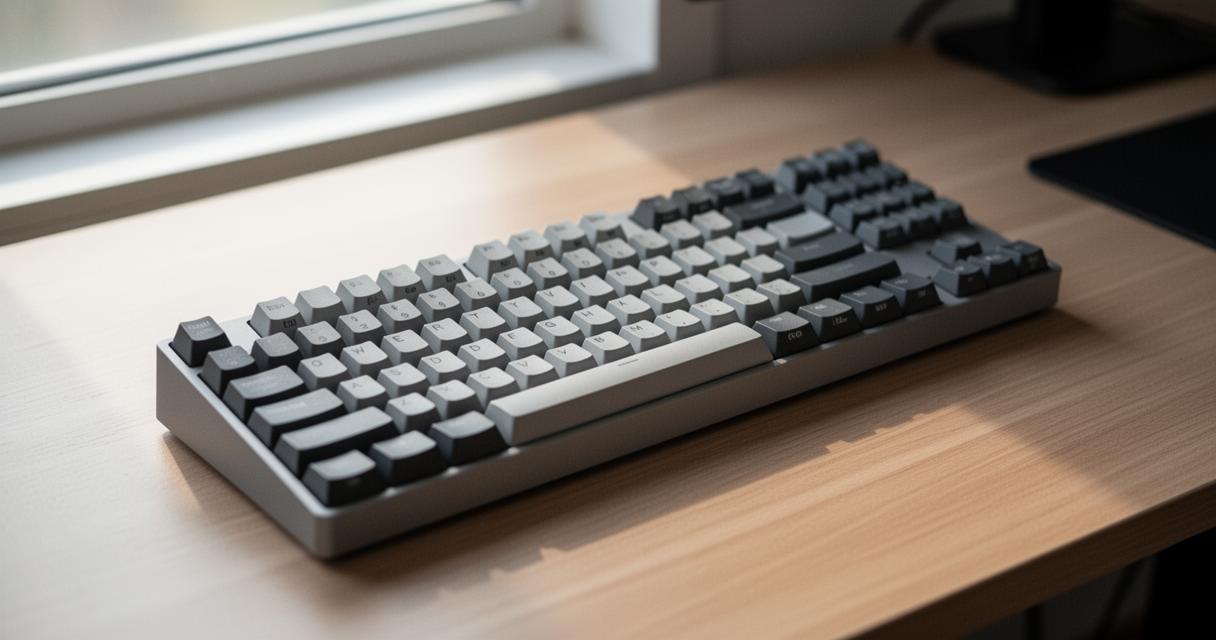
The hyphen key sits on the top row of the keyboard, nestled just to the right of the number zero. If you glance at that key, you’ll likely see two symbols printed on it: the hyphen below and the underscore above. This visual cue is your reminder that Shift is required to produce the upper character. For those working on developing proper touch typing skills, this is a lovely example of why memorising the keyboard layout matters so much, as it removes the need to hunt for the key every single time you need it.
Cross-platform compatibility: typing underscores on different operating systems
Windows and macOS: A Unified Approach to Special Characters
Thankfully, this method remains consistent whether you’re working on a Windows machine or a Mac. The Shift plus hyphen combination produces the underscore reliably across both systems, which makes life considerably easier if you switch between devices regularly. This kind of consistency is one of the underrated benefits of sticking to a standard layout, as it reinforces muscle memory rather than forcing you to relearn habits every time you sit down at a different computer.
Navigating alternative keyboard layouts: azerty and beyond
Things become slightly more nuanced for those using an AZERTY layout, which is common in France and parts of Europe. The positioning of certain keys differs, meaning the underscore may require a different combination altogether. If you’re accustomed to a QWERTY setup but find yourself using an AZERTY keyboard, it’s worth taking a moment to check the specific layout rather than assuming the same shortcut applies. This is particularly relevant for anyone working across international teams or using devices purchased abroad, where keyboard familiarity can’t always be taken for granted.
Practical applications and troubleshooting tips
Utilising Underscores in Coding and Document Formatting
Beyond everyday typing, the underscore plays a genuinely useful role in coding, where it’s often used to separate words within variable names since spaces aren’t permitted in most programming languages. It also appears frequently in file names and formatting conventions, helping to keep things readable without breaking syntax rules. For anyone spending considerable time at a keyboard, whether for professional or personal projects, building this particular keystroke into your typing speed and accuracy routine pays dividends over time.
This is where structured typing education genuinely shines. KAZ, for instance, offers a course designed to teach the entire keyboard layout in roughly ninety minutes through five structured phrases, helping learners establish correct finger placement from the very start. The home position relies on the F and J marker keys to guide your index fingers, with the remaining fingers resting naturally on adjacent keys, the left hand covering A, S, D and F, and the right hand covering J, K, L and the semicolon. Thumbs rest gently on the spacebar throughout. This foundational setup is what eventually allows typists to reach impressive milestones, with some learners reporting speeds around 82 words per minute alongside accuracy figures close to 96 percent once they’ve built sufficient practice into their routine.
Resolving keyboard character issues through settings and on-screen tools
Occasionally, users run into trouble producing certain characters, whether that’s the underscore, the circumflex, or the diaeresis, often due to regional keyboard settings that don’t match the physical keyboard being used. In these situations, checking your operating system’s keyboard settings can resolve mismatches quickly, and switching to an on-screen keyboard temporarily can help you locate the correct key without guesswork. Proper posture and regular wrist stretching also contribute to smoother typing sessions, reducing the risk of repetitive strain injury over time. Developing a natural rhythm, focusing on the screen rather than your hands, and committing to regular practice all reinforce the kind of think-typing that eventually makes reaching for tricky characters like the underscore feel effortless rather than laborious.
 How to Speed Up Your PC
 Facebook Open Graph Debugger Tool for Open Graph tags: Why you must use it?
 Some Excellent Software You Need to Manage Your Business Operations Properly
 What should I know about the virtual server?
 Comment creer un sondage sur Facebook Messenger en 2022 ?
 The Ultimate KODI IPTV Configuration and Installation Handbook: Troubleshooting Network Reception and Protocol Integration